Follow-ups use the same template, draft, review, and scheduling workflow as an initial pitch. Create a separate template so the follow-up copy remains distinct.
Create the follow-up template
Open the pitch's Templates view and select the + control.
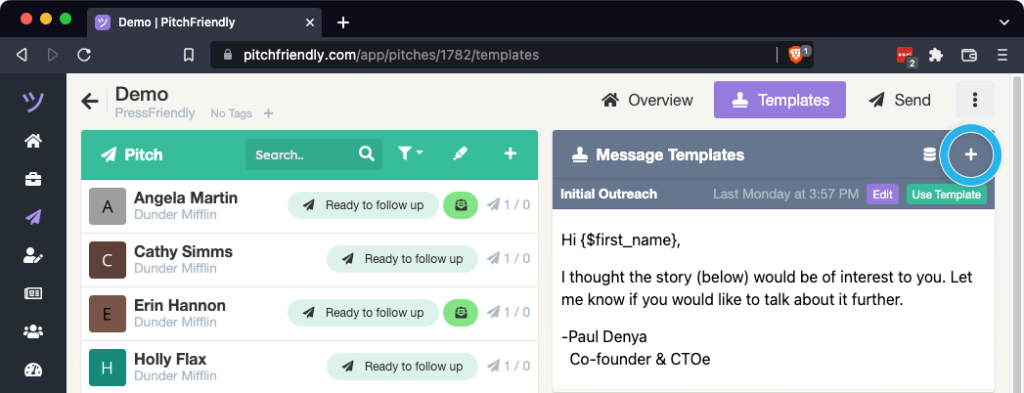
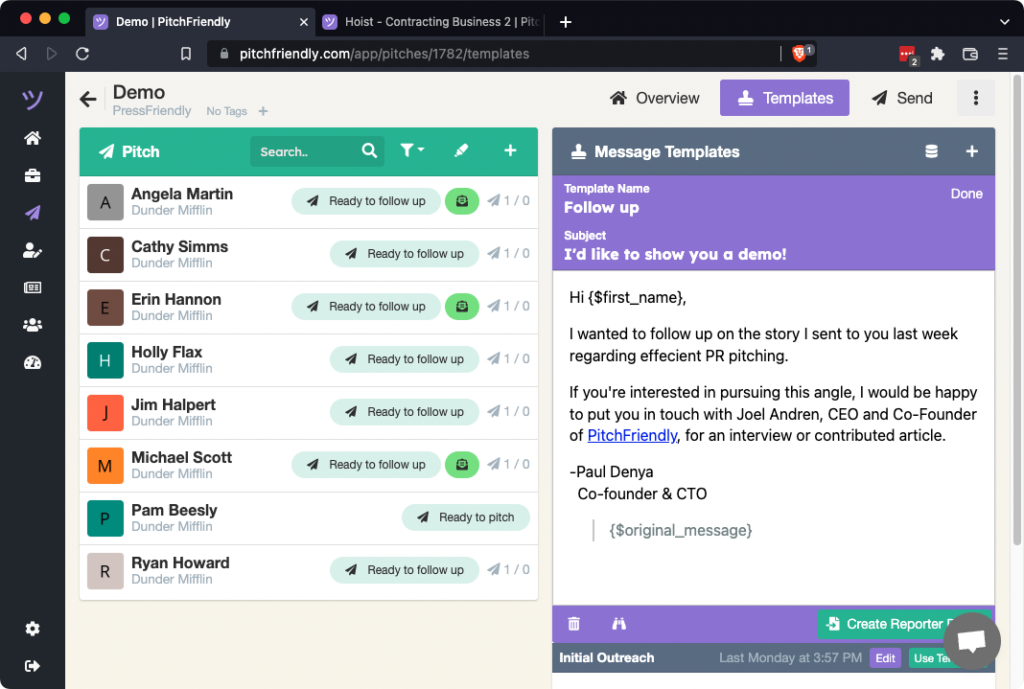
Write the follow-up. The {$original_message} mail merge field inserts the initial pitch below it. Remove that field if the first message should not appear.
Target a reporter segment
Open the Send view and select the intended segment. For example, Read limits the selection to reporters who opened the earlier message.
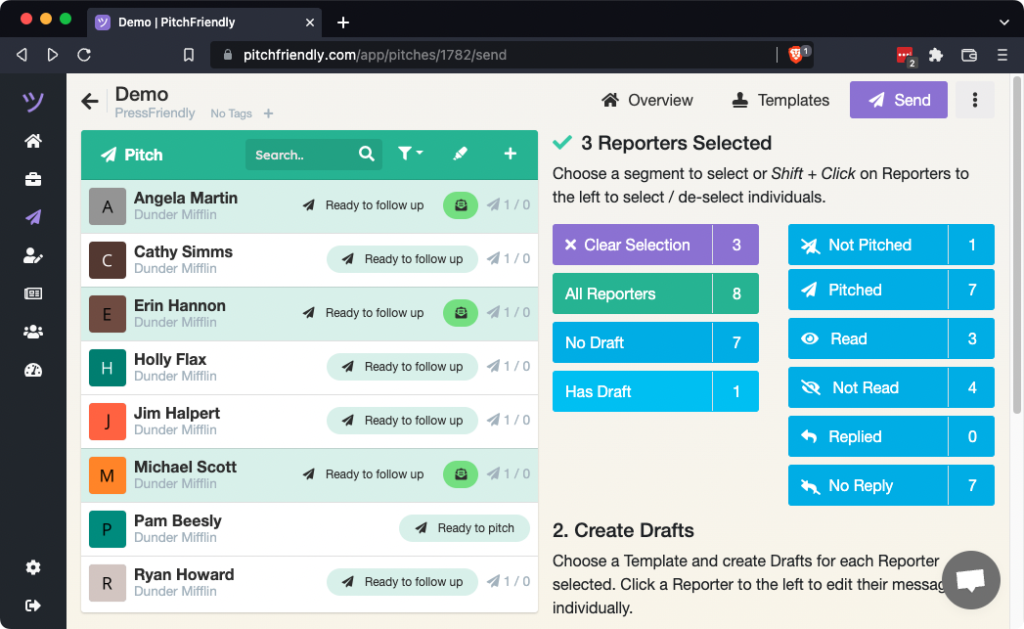
Separate templates can provide different follow-up copy or subjects for different segments.
Create the reporter drafts
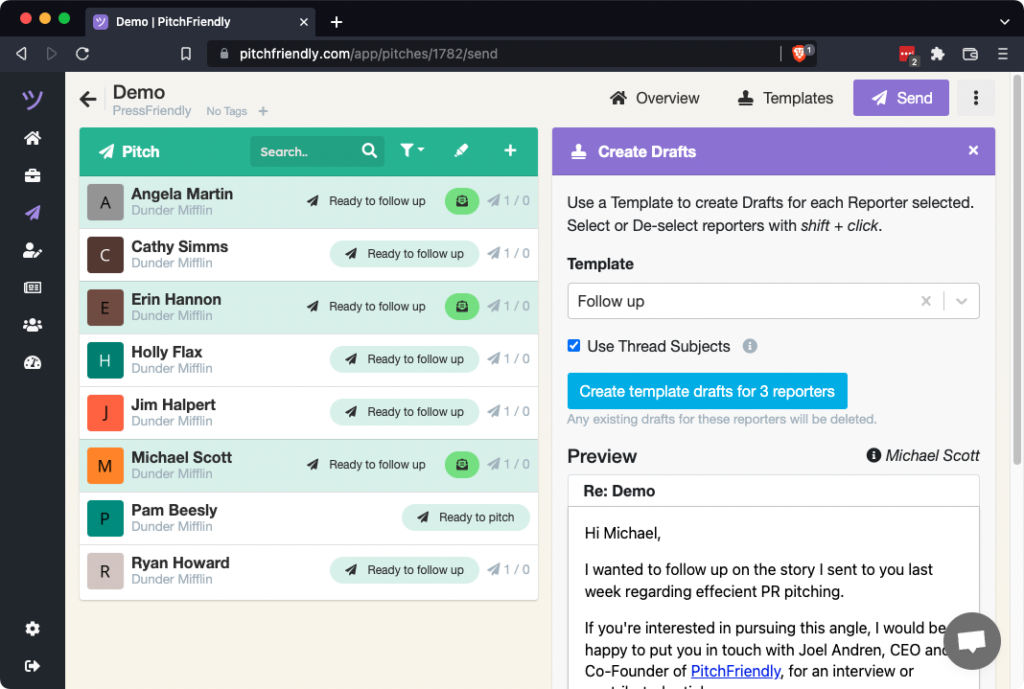
Select Create Drafts and confirm the follow-up template.
The Use Thread Subjects setting controls threading:
- Keep it selected to retain the earlier subject and email thread.
- Clear it to use the follow-up template's subject.
Select Create template drafts for reporters.
Review and schedule the follow-ups
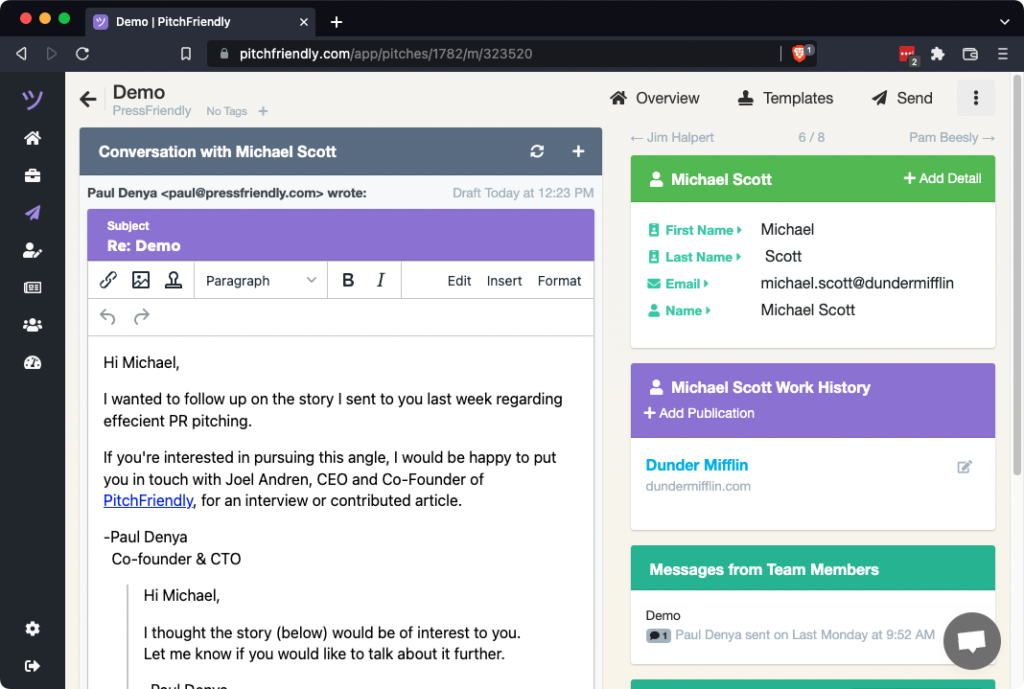
Select a reporter to edit the draft or send yourself a preview.
Return to Send, select the same segment, and choose Batch Send / Schedule. Confirm the selection and send time before scheduling.