Canceling a scheduled message returns it to draft status. The draft can then be edited, scheduled for another time, or deleted.
Find the scheduled message
The Scheduled Messages card on the PitchFriendly home page lists messages that are scheduled or were sent recently.
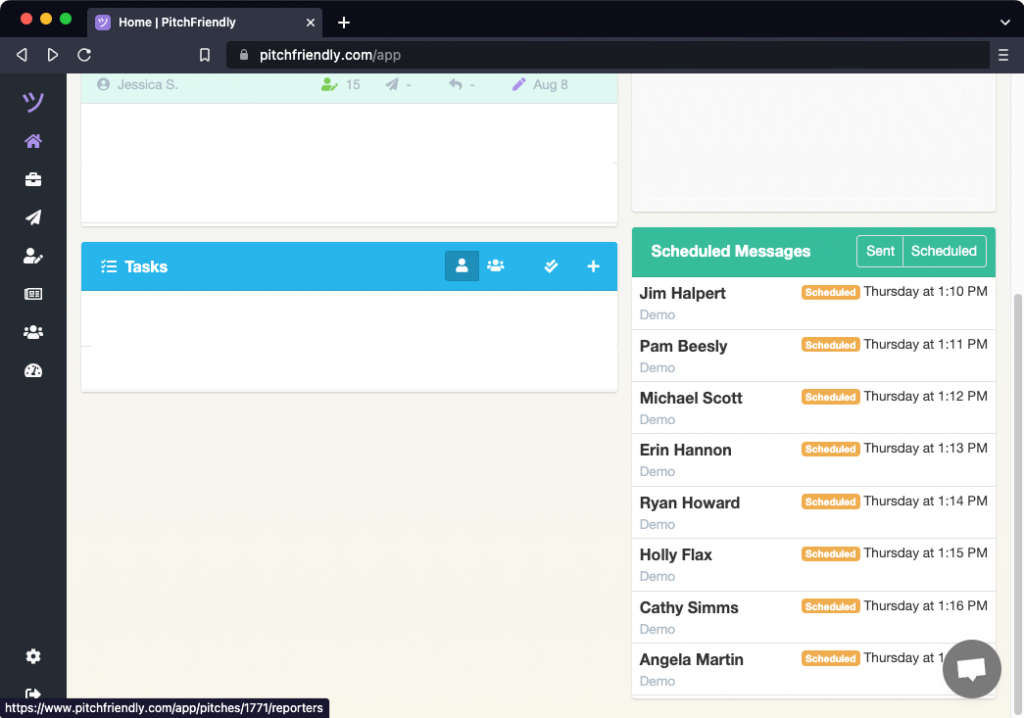
Select the reporter whose message you want to cancel. You can also open the pitch and select the reporter there.
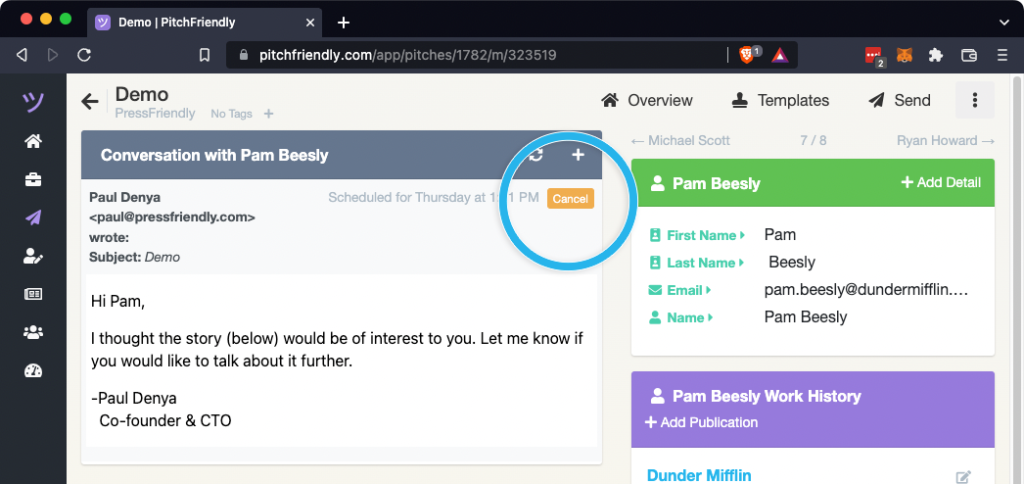
Cancel the message
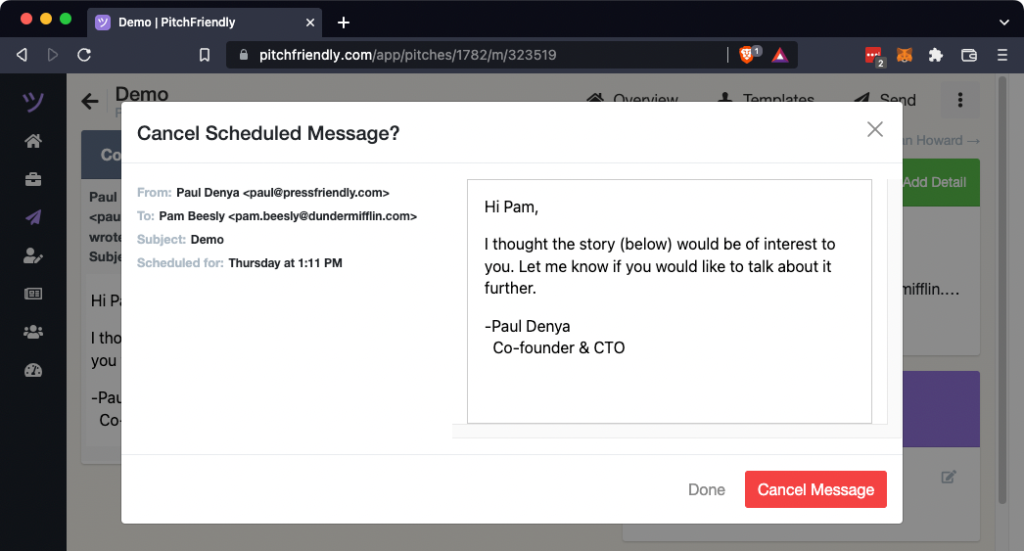
Select the cancel control on the scheduled message, then confirm Cancel Message.
Edit or reschedule the returned draft
The canceled message now appears as a draft in the reporter detail view.
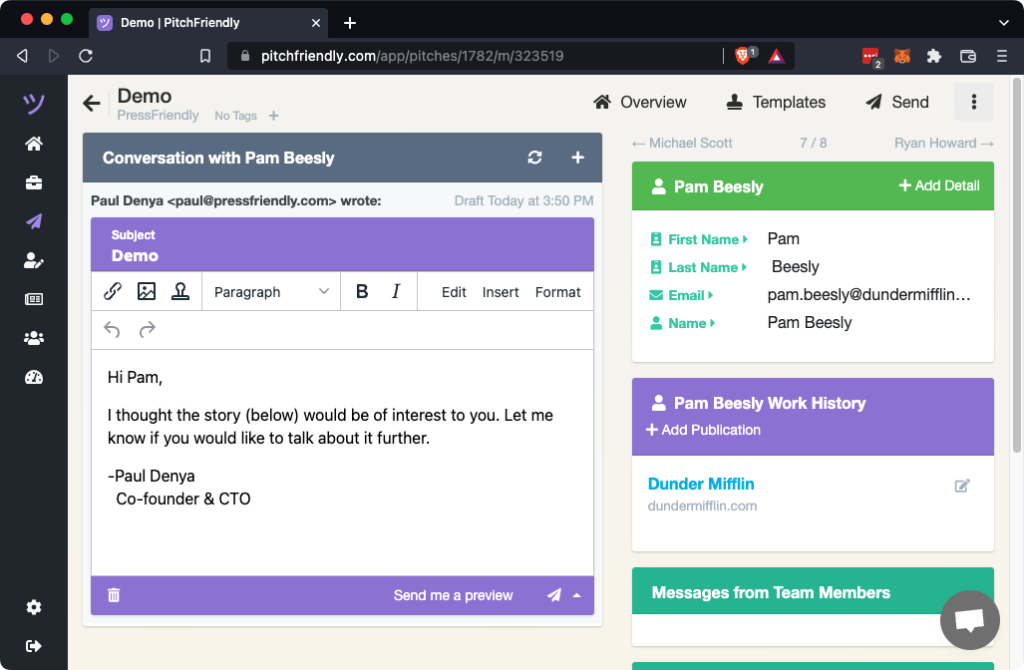
Edit the draft, schedule it for a new time, or delete it.